
How to Connect iPad to Printer | Step-by-Step Guide [2025]
Got an iPad and need to print something quickly? Don’t worry! Connecting your iPad to a printer is surprisingly easy, even if you are new to printing.
Apple has made printing super accessible. Modern printers support wireless printing, so you no longer need a cable connection to connect your iPad to a printer. You are on this page. Congratulations! You have the right printer experts’ hands during the printing journey.
Let’s grab a cup of coffee and dive into this post. It will provide step-by-step instructions on “how to connect iPad to printer”, and start printing documents, photos, or whatever you need.
How to Connect iPad to Printer?
Printing from your iPad or connecting a printer to an iPhone or Mac is easy using the built-in AirPrint feature. If your printer does not support AirPrint, there are other options too.
However, most current model printers from well-known brands (Epson, HP, Brother, and Canon) support AirPrint. The following is the step-by-step process to connect your iPad to the printer:
Step 1: Check if Your Printer Supports AirPrint
First and foremost, double-check your printer supports AirPrint for smooth printing via iPad. This information is available at the back of the printer box, in the user guide that comes with the printer, or on the manufacturer’s website for your printer model.
If your printer is AirPrint compatible, everything is crystal clear; Otherwise, there are still some other printing methods.
Step 2: Connect Your Printer to Wi-Fi
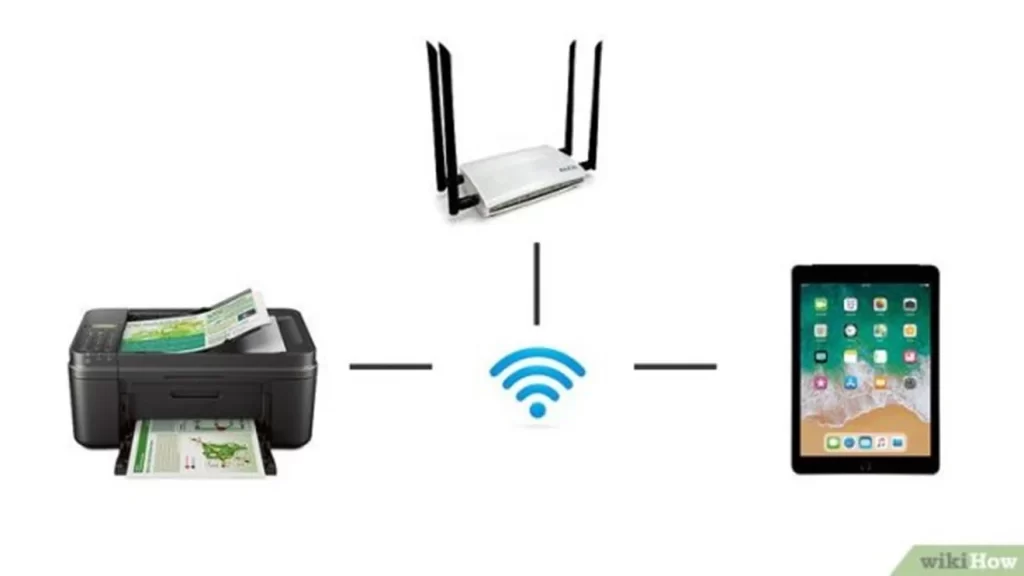
Communication between your iPad and the printer requires that both devices be connected to the same Wi-Fi network. Here’s how you can make sure your printer is connected to Wi-Fi:
Use the Printer’s Touchpad or Buttons: New generation printers are mostly Wireless printers with touch screen panels or buttons for easy navigation. Search for the wireless or the network setting on the control panel.
WiFi Connection: Choose the Wi-Fi network with a good internet connection from the list and enter your password. Connecting to the Wi-Fi means your printer is ready for the next step. Now the Wi-Fi icon is displayed on the screen.
Tip: If you notice that your printer does not include a display screen, turn to the guide. Some printers support pushing a button on the printer and on your router ‘button’ like Wi-Fi Protected Setup (WPS).
Step 3: Connect Your iPad to the Same Wi-Fi Network
Once your printer is connected to the Wi-Fi network, ensure your iPad is also connected to the same Wi-Fi as your printer to start the process.
Go to Settings on your iPad and click the “Wi-Fi” icon to double-check it’s enabled. Ensure the selected Wi-Fi network matches the one your printer is connected to.
Step 4: Print from Your iPad
Congratulations, you have connected your printer and iPad to the same network and are now ready to print! Safari, Photos, Notes, Files, and many other applications on your iPad support printing. All you have to do is locate the document, webpage, or photo you wish to print.
Tap the Share icon. This icon looks like a square with an arrow pointing up (at the top or bottom of the screen). Tap it to open the sharing options.
Scroll through the options until you find the “Print” button. Tap it to open the print settings. Tap “Select Printer” and choose your AirPrint-enabled printer from the list. You should see it as long as it’s on the same network.
If needed, you can change the number of copies for your order or select the pages you want to be printed or even color. Once you have made the settings, click the “Print” button, and there you have it.
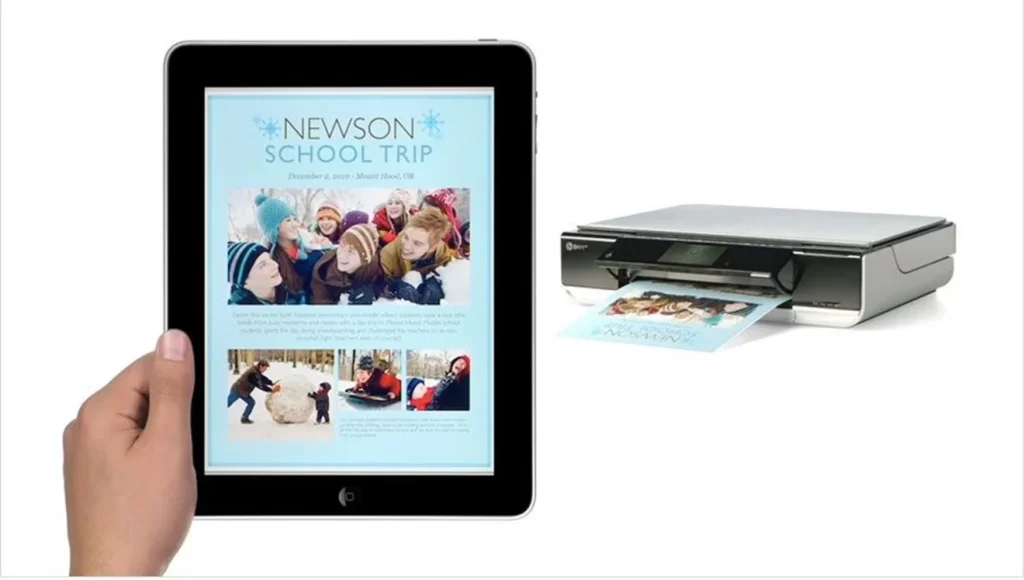
Your iPad will transfer the document to the printer, and see your printed document is out soon after.
Troubleshooting Tips
If you run into any issues, here are some quick fixes:
- Make sure AirPrint is enabled on your printer. Check the printer’s settings or manual for instructions.
- Restart both devices by turning your iPad and printer off and on again.
- Move your iPad and printer closer to your Wi-Fi router if the connection seems weak.
How to Connect iPad to Printer other than via AirPrint?
Connecting via Bluetooth
- Check Printer Compatibility: Some Wireless Bluetooth printers have Bluetooth connectivity options to let you pair them straight with your iPad. Check the printer’s specifications to see if it supports Bluetooth printing.
- Enable Bluetooth: Open the Settings app on your iPad, tap Bluetooth, and toggle the switch to enable Bluetooth connectivity.
- Pair Your Devices: Set your printer to pairing mode as per the manufacturer’s instructions. When you enter pairing mode, your printer appears in the list of available devices on your iPad. Select your printer from the list to connect it to your iPad.
- Print From Your iPad: After successfully pairing your printer with Bluetooth, directly print from your iPad. Follow the same steps above for wireless printing, then choose your printer from the list of available devices when prompted.
Connecting via USB
- Use a USB Adapter: If your printer supports USB, you can connect it to your iPad with a USB adapter. Look for a lightning-to-USB adapter or a USB-C to USB adapter, depending on your iPad’s connector.
- Connect the Printer: Connect one end of the USB adapter to your iPad and the other to the USB connection on your printer.
- Print From the iPad: Once connected, your iPad should see the printer as an available device. Follow the same steps as above for AirPrint printing, then choose your printer from the list of available devices when prompted.
Using Third-Party Printing Apps
Nowadays, it literally feels like there’s an application coming out for every single thing in the world. The app craze has been turned into printing via mobile apps that can be used to print.
With these apps, you can print directly from your iPad, together with the printer if it has built-in Wi-Fi. From printing documents to a simple web browser page, everything is in your hands.
Other applications like Samsung Mobile Print and Epson iPrint let you scan from your iPad and perform other necessary printing functions. These apps are normally also linked to different cloud services for this purpose as well.
Some third-party applications like PrintJinni and Printer Pro by Readdle let you print documents from an iPad as well as from a compatible printer. Using these apps, you can print directly from your iPad to a printer that supports Wi-Fi connectivity.
Conclusion
“How to connect iPad to printer” might seem a challenge! But it is as simple as I’ve explained above. Whether your printer supports AirPrint using a USB adaptor or a third-party app, this guide helps you print in no time.
It only takes a few touches of the finger to print out documents, photos, or whatever you want from the iPad. Just get on it and see how quickly you’ll be mastering it.